How to Download and Install Wondershare Filmora on Windows?
Wondershare Filmora is an open-source and basic video editing application that is rather elegant in its simplicity. It provides all the essential functions that are used to build a video narrative. It is very easy to use and compatible with all the popular video, audio, and image formats. So you are allowed to add pretty much any media to your project. Once you have the elements you want to use imported into the video editing program, it’s a matter of dragging them onto and arranging them on the timeline. In this article, we will see how to install Wondershare Filmora step by step.
Installing Filmora on Windows
Follow the below steps to install Filmora on Windows:
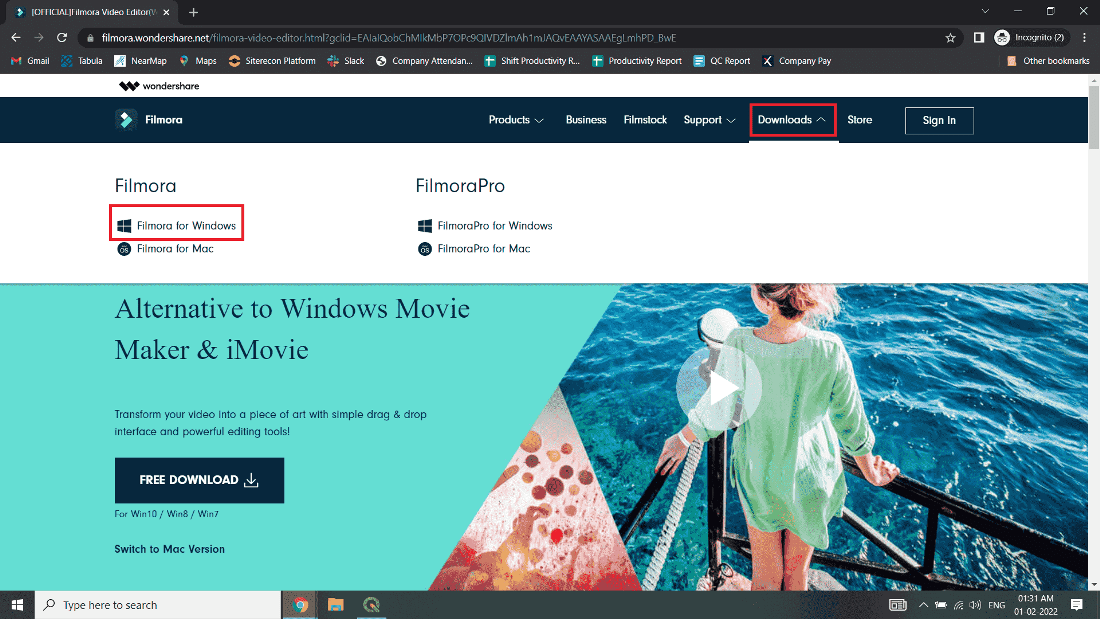
Step 1: Visit the official website using any web browser like Google Chrome, Mozilla Firefox, etc.

Step 2: Now click on Download Button then the dialogue box appeared in the down and then click on Filmora for Windows Button and start downloading.
Step 3: Now find the executable file in the downloads folder in your system and open it to start the installation process.
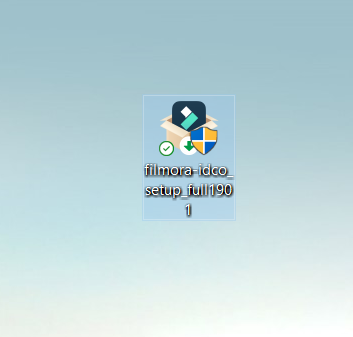
Step 4: It will prompt confirmation to make changes to your system. Click on Yes.
Step 5: Now click on the Install button to start the installation.
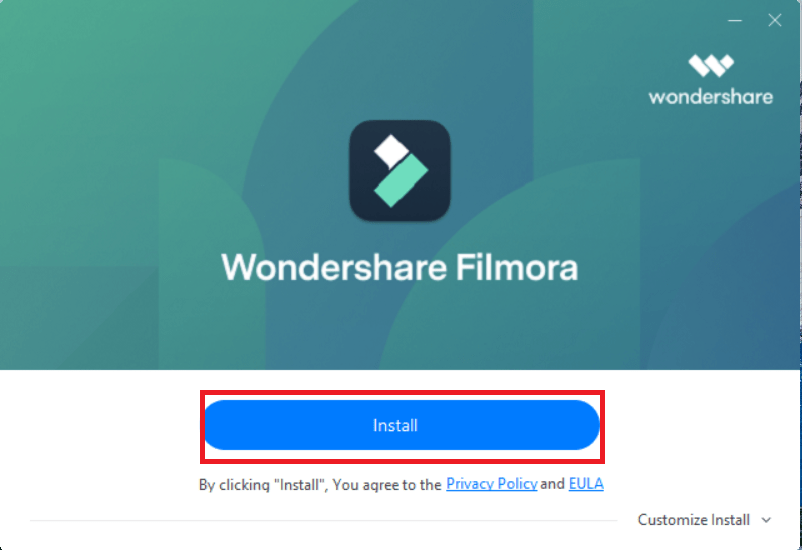
Step 6: After this installation process will start and it will hardly take 5-7 minutes to complete.

Step 7: Now click on the Start Now button to start the Filmora.
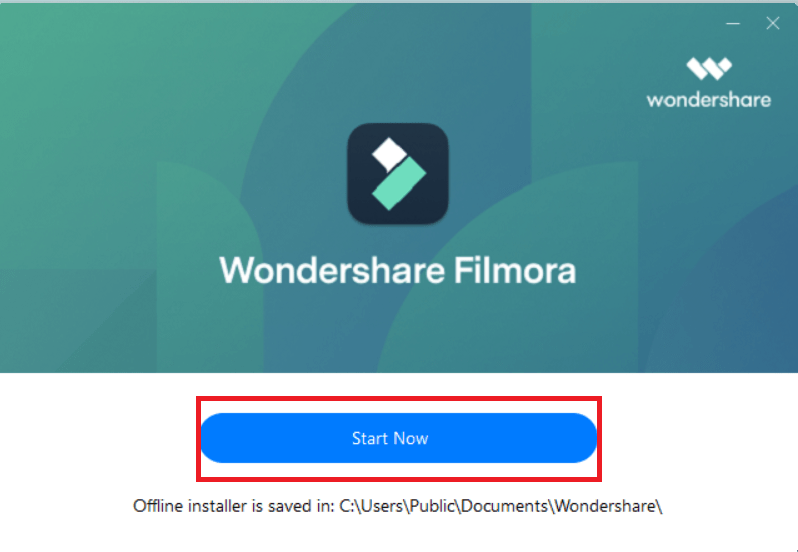
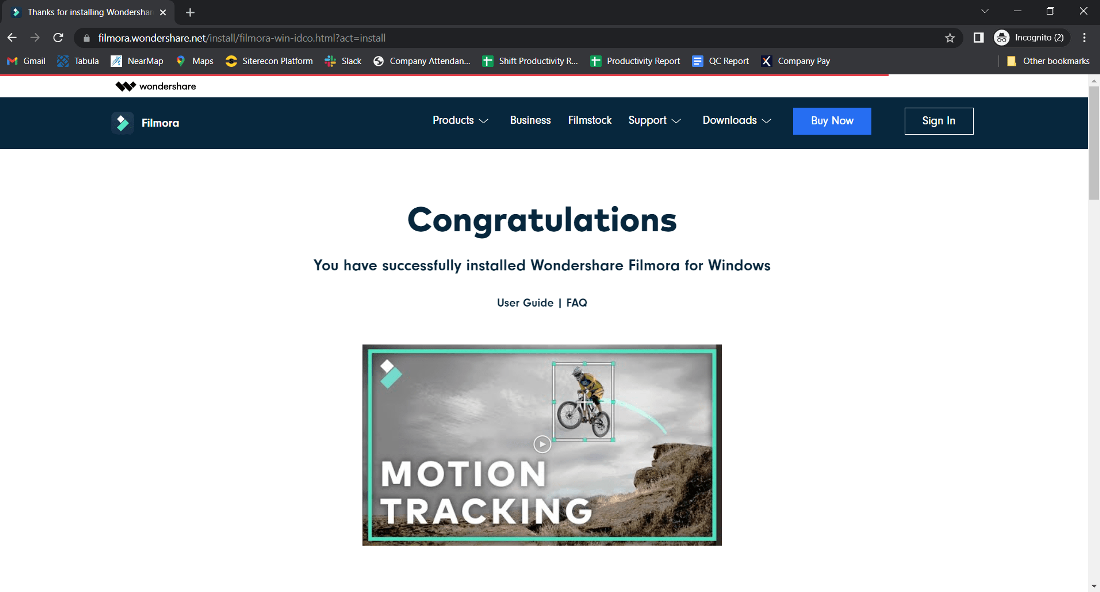
Step 8: Now your default web browser will open and show the Congratulations message of the filmora for successfully installed on your computer. Close the Web Browser.
Now you can see the interface of the software.
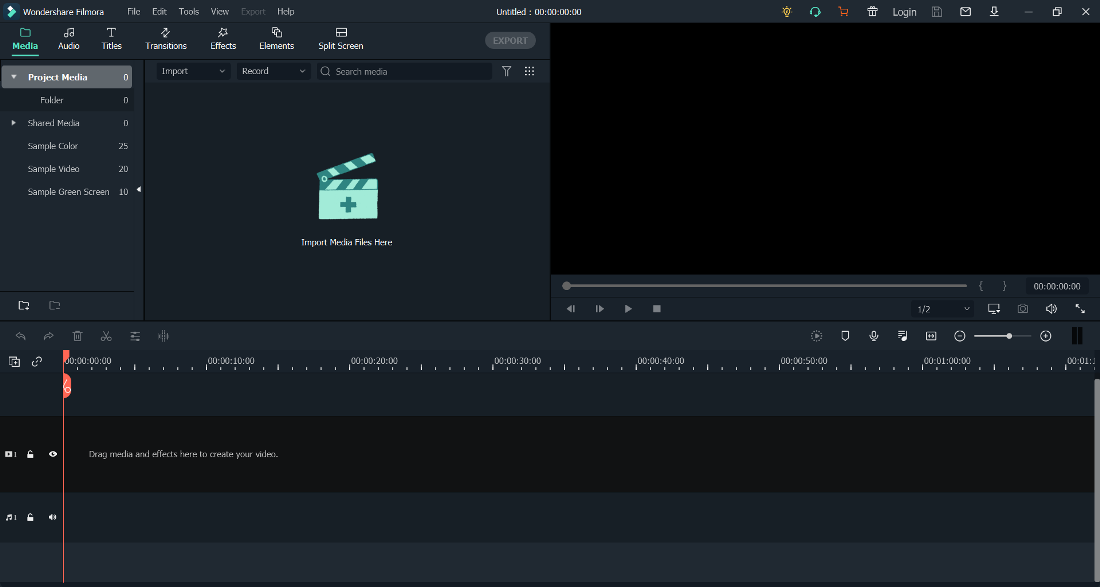
At this point, Wondershare Filmora is successfully installed on the system and an icon is created on the desktop.

Congratulations!! At this point, you have successfully installed Wondershare Filmora on your Windows system.
Source here
Comments
Post a Comment